
INT. THE PIPELINE — DAY
How it works
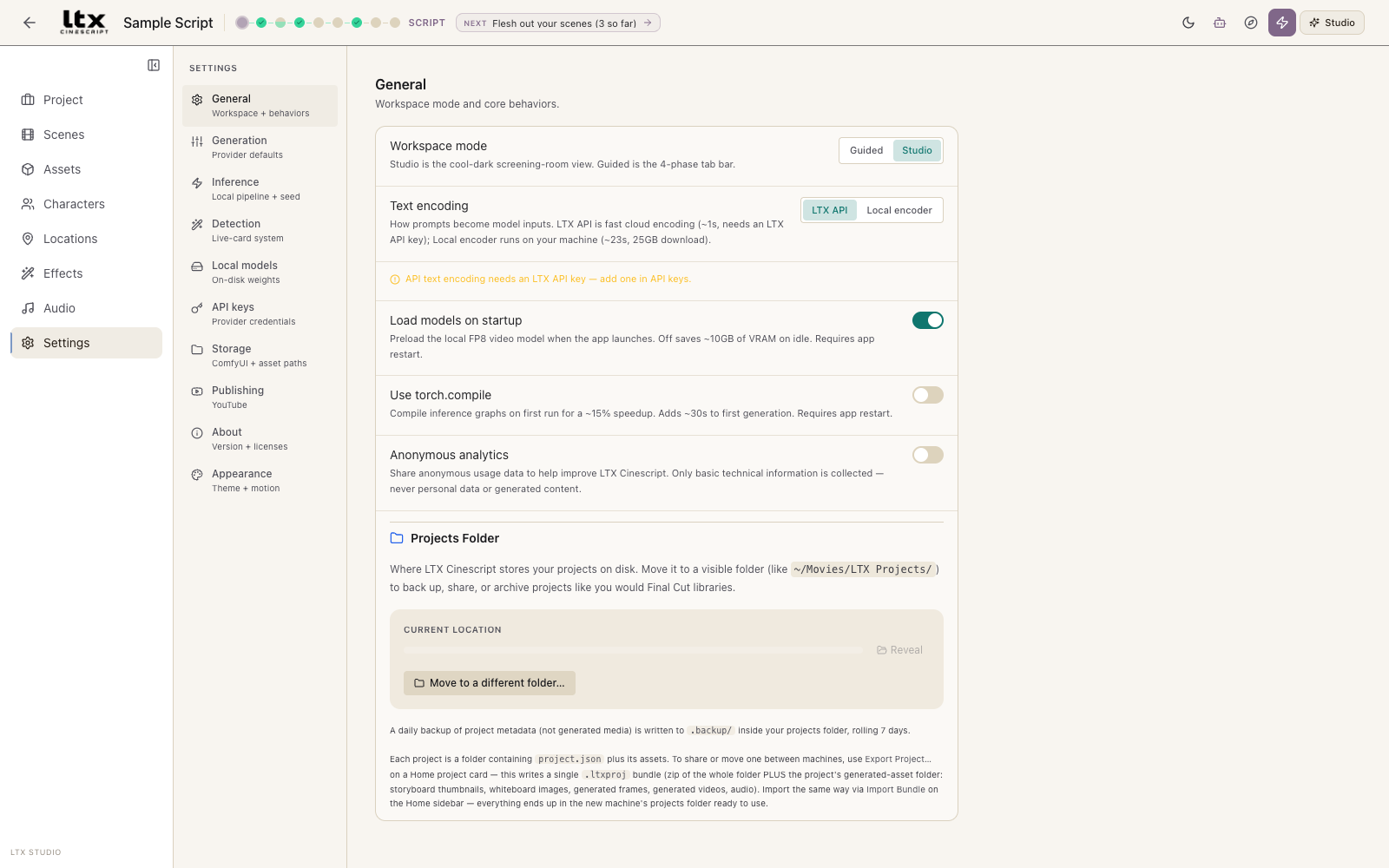
One project, two ways to face it. Studio is the default — everything on one screen. Guided walks the order a film comes together, in four phases. If you’ve never made a film, Guided is the friendlier shape, and a short tour introduces it the first time you switch.
Write
Script Assistant · Screenplay · Viewer. Develop or import a script; lines become shots.
Plan
Director · Outline · Storyboard · Whiteboard. Style direction, beats, and a still per shot to approve the look.
Make
Shot List · Gen Space · Production. Generate frames and video, locally or in the cloud.
Cut
Video Editor. Multi-track timeline, takes, transitions, audio, export.
1 · WRITE
Start with words
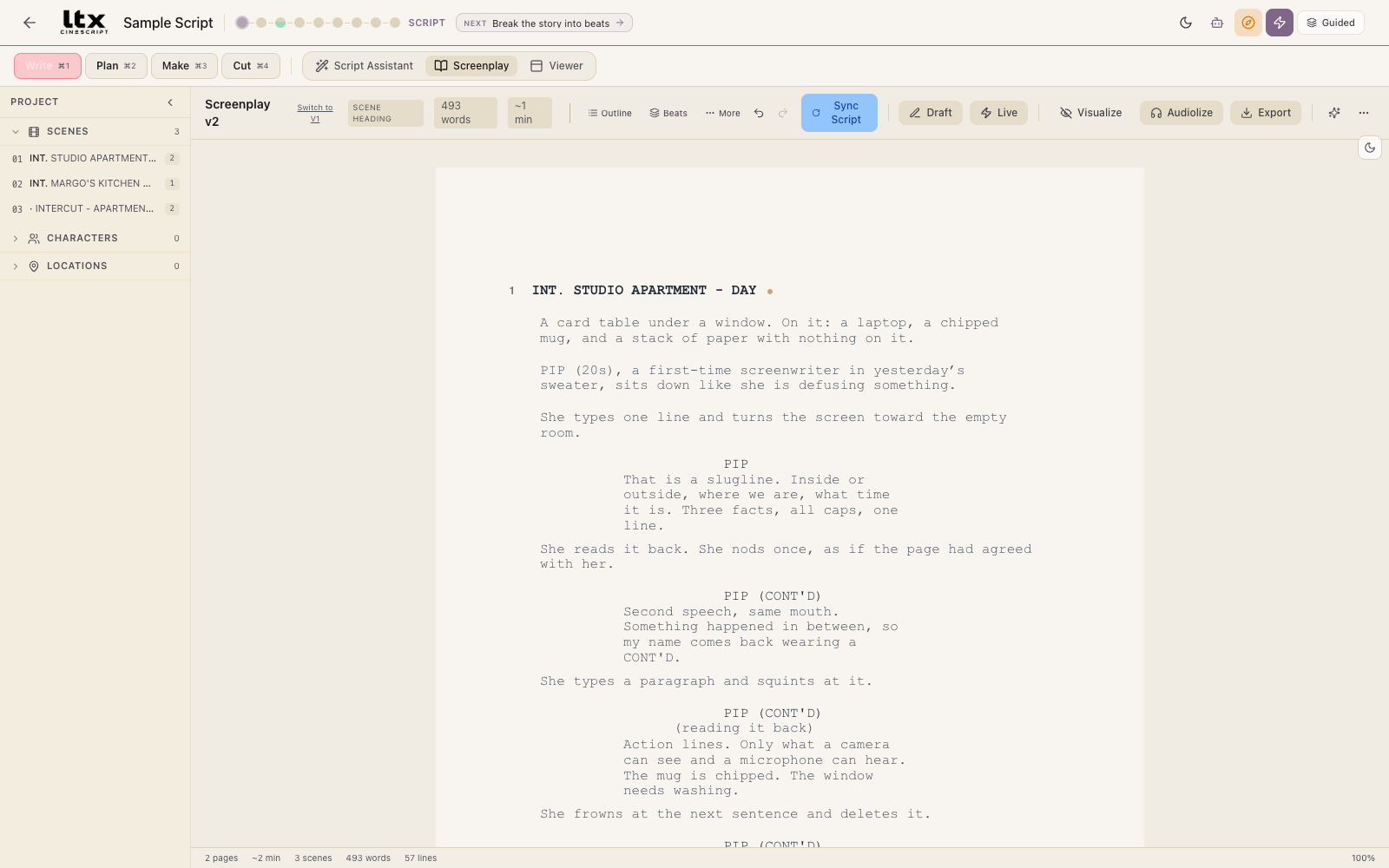
The screenplay editor is Fountain-compatible: sluglines, cues,
parentheticals, and transitions format as you type, and
.fountain files import and export. Characters and
locations become entities you can attach reference images to, and
drafts keep history you can compare.
The Script Assistant can help develop a script with AI guidance — or you just write.
2 · PLAN
Break it into shots, approve the look
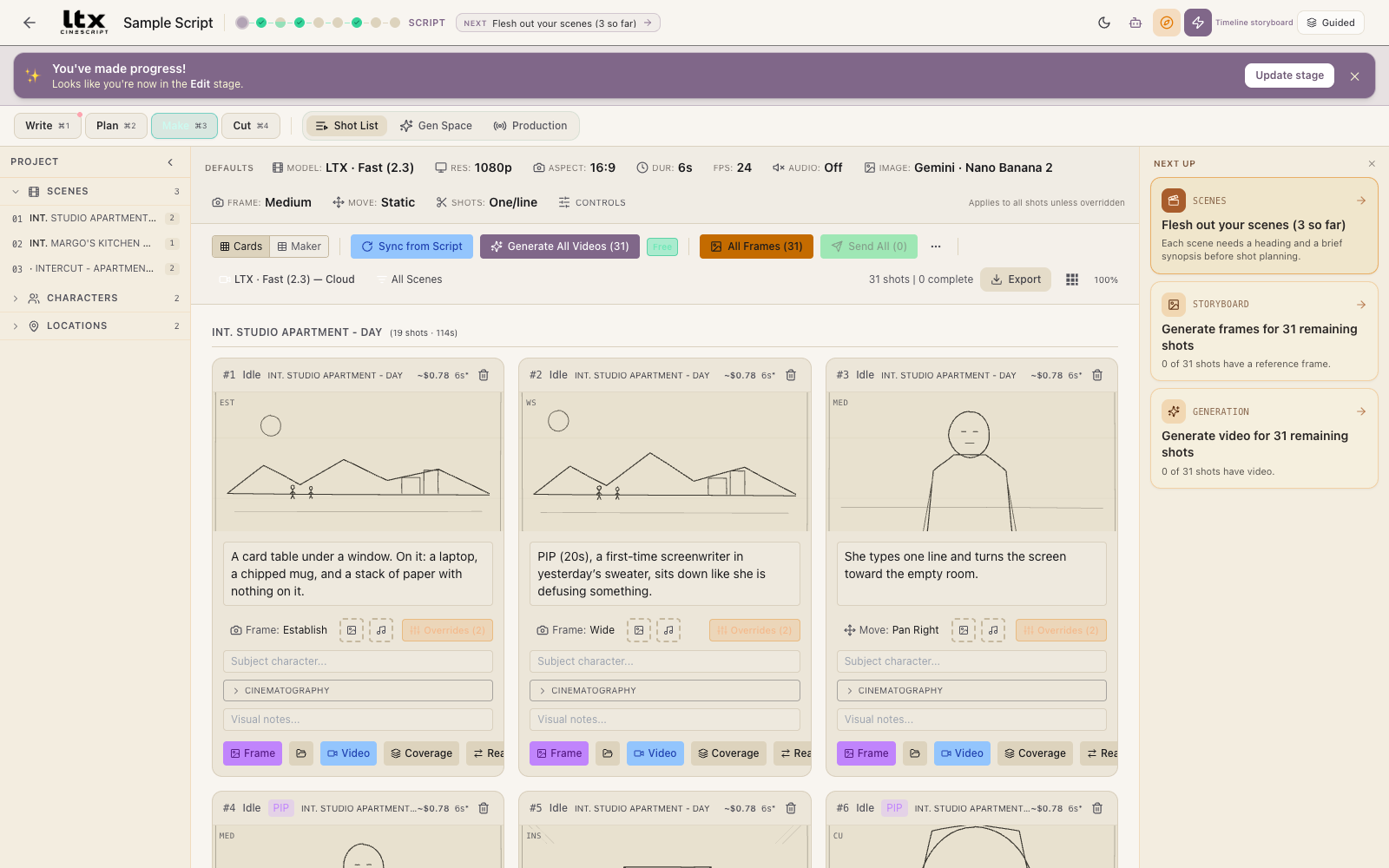
One click turns the script into a shot list — every shot with a frame type, a camera move, a duration, and a cost estimate before anything is generated. In the Storyboard you generate a still per shot and approve the look before spending on video. The Director surface holds global style direction that’s appended to every generated prompt; individual shots can override it.
3 · MAKE
Generate — on your GPU or through your keys
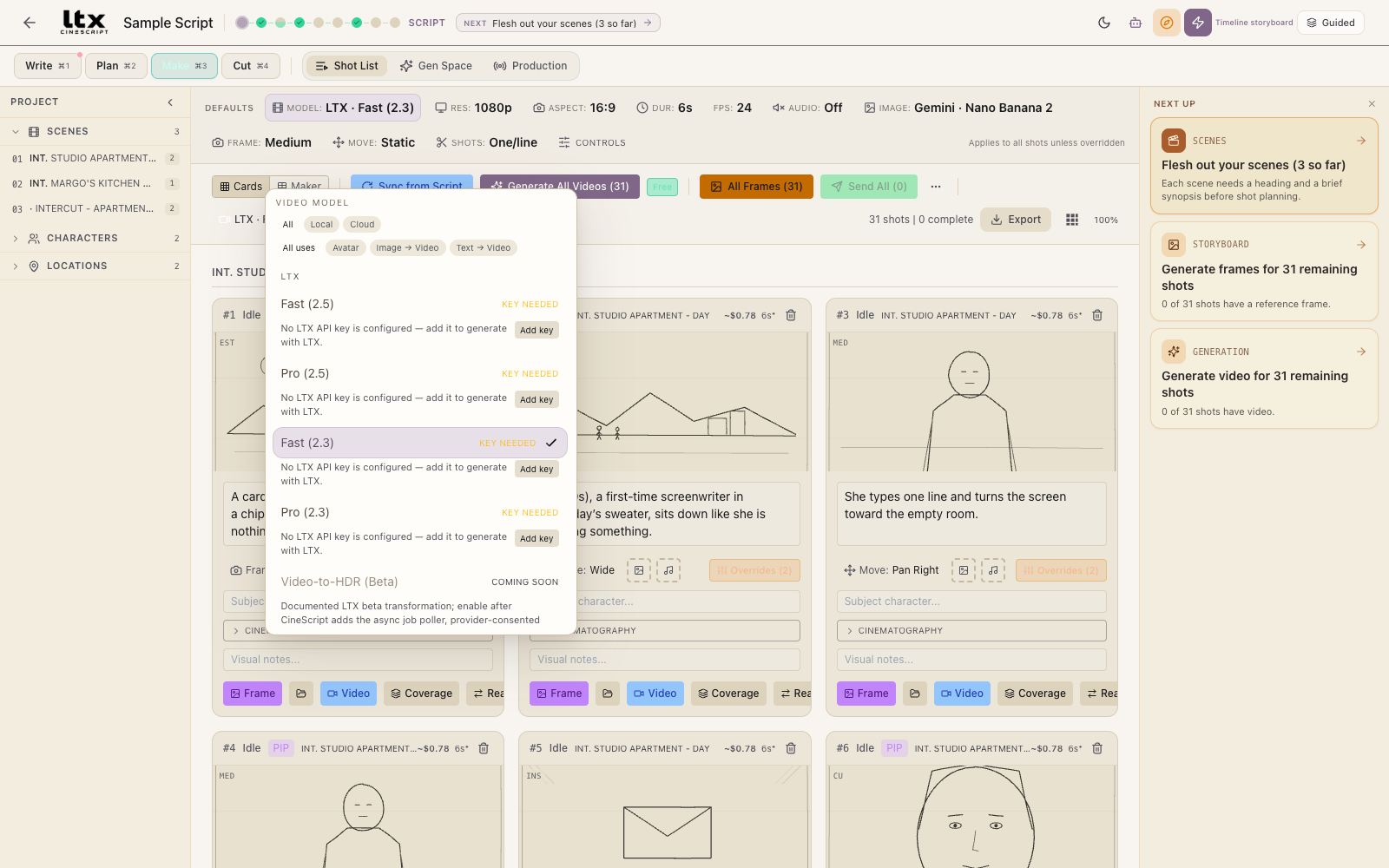
Pick a model per shot or set a default. Local runs LTX-2.3 entirely on your machine (Windows, 24 GB NVIDIA card, ~76 GB of weights on first use). Cloud uses your own API keys, with a cost estimate before you spend — and “Price unknown” when a rate can’t be verified, rather than a guess.
Anything that uploads your media to a provider first shows a native consent dialog naming the provider and the exact files.
4 · CUT
Finish on a real timeline
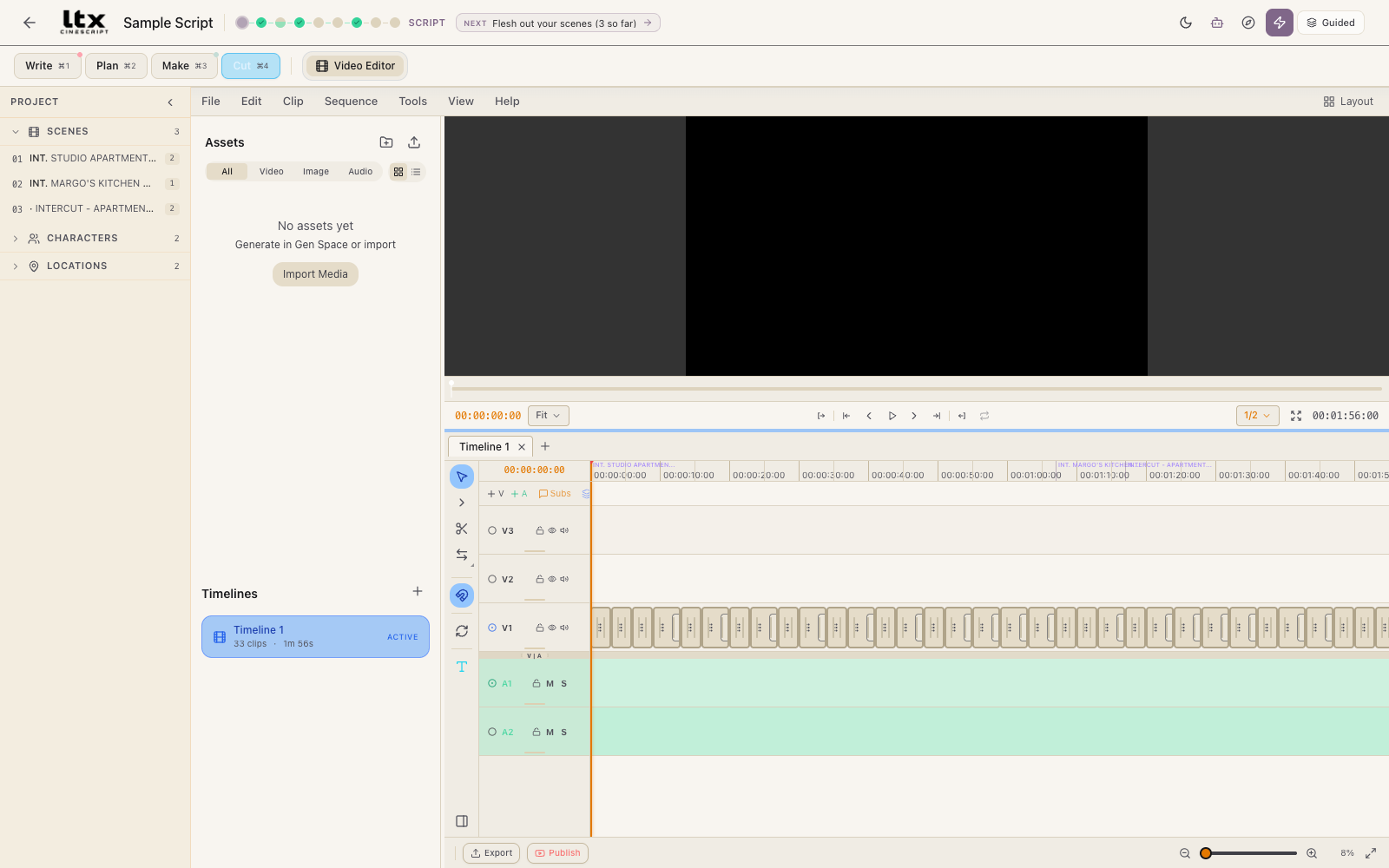
Every shot the script produced lands on the timeline in order, grouped by scene — placeholders until you generate into them. Takes and coverage stack as alternatives on the same moment. Multi-track video and audio, transitions, and export to H.264 / ProRes / VP9 — or hand the cut to Resolve or Premiere via Final Cut XML / FCP7 XML and bring the edit back later.
There’s a full audio pass too: a DAW-style timeline with a mixer, piano roll, automation lanes, and stem export, plus optional on-device music and TTS engines.
PROVIDERS & KEYS
You need fewer keys than you’d think
Most cloud video models here are fal-hosted, so one fal key covers several providers. Keys are stored encrypted with the OS keystore and sent only to the provider you configured. Most key fields in Settings link straight to the provider’s key page.
| Key | What it unlocks |
|---|---|
| LTX | LTX video generation, Retake, and free cloud text encoding + prompt enhancement. Required in cloud mode. |
| fal | Kling, MiniMax, Seedance, Pika, Happy Horse — and fal image models. One key, all of them. |
| Gemini | Gemini image generation, AI prompt suggestions, and Google Veo video — Veo does not take a separate key. |
| Runway | Runway video. |
| Luma | Luma video. |
| OpenAI | OpenAI image generation. |
| (none) | A local ComfyUI instance — that’s a URL, not a credential. |
Not available in this build: FLUX video, and Comfy Cloud (present in the catalog but disabled — it has never been tested against the real service, and the app says so in the UI rather than pretending). Cancelling a cloud job doesn’t always stop the meter: only fal and Runway expose a remote cancel.
THE EDGES
Known limitations, stated plainly
- This is a beta, and a fork of a beta. The frontend is under active refactor — expect breaking changes between releases.
- Neither platform’s build is OS-trusted yet — see the download page for exactly what your OS will say.
- The built-in local engine is Windows-only and needs a 24 GB NVIDIA card. On a Mac (Apple Silicon only) you can use cloud providers or a local ComfyUI install; native Apple Silicon generation is being ported from upstream. Linux isn’t supported.
- Hosted model IDs drift — providers rename and retire models between the app’s registry sweeps, which can break a model option temporarily.
- Auto-update is deliberately off. Updating means downloading a new build.
The full, longer list — including security notes most download pages would never print — is in the README’s Known limitations. Found something new? Report it — every error surface in the app has a “Copy error report” button that captures the full detail for you.